Stream Dashboard
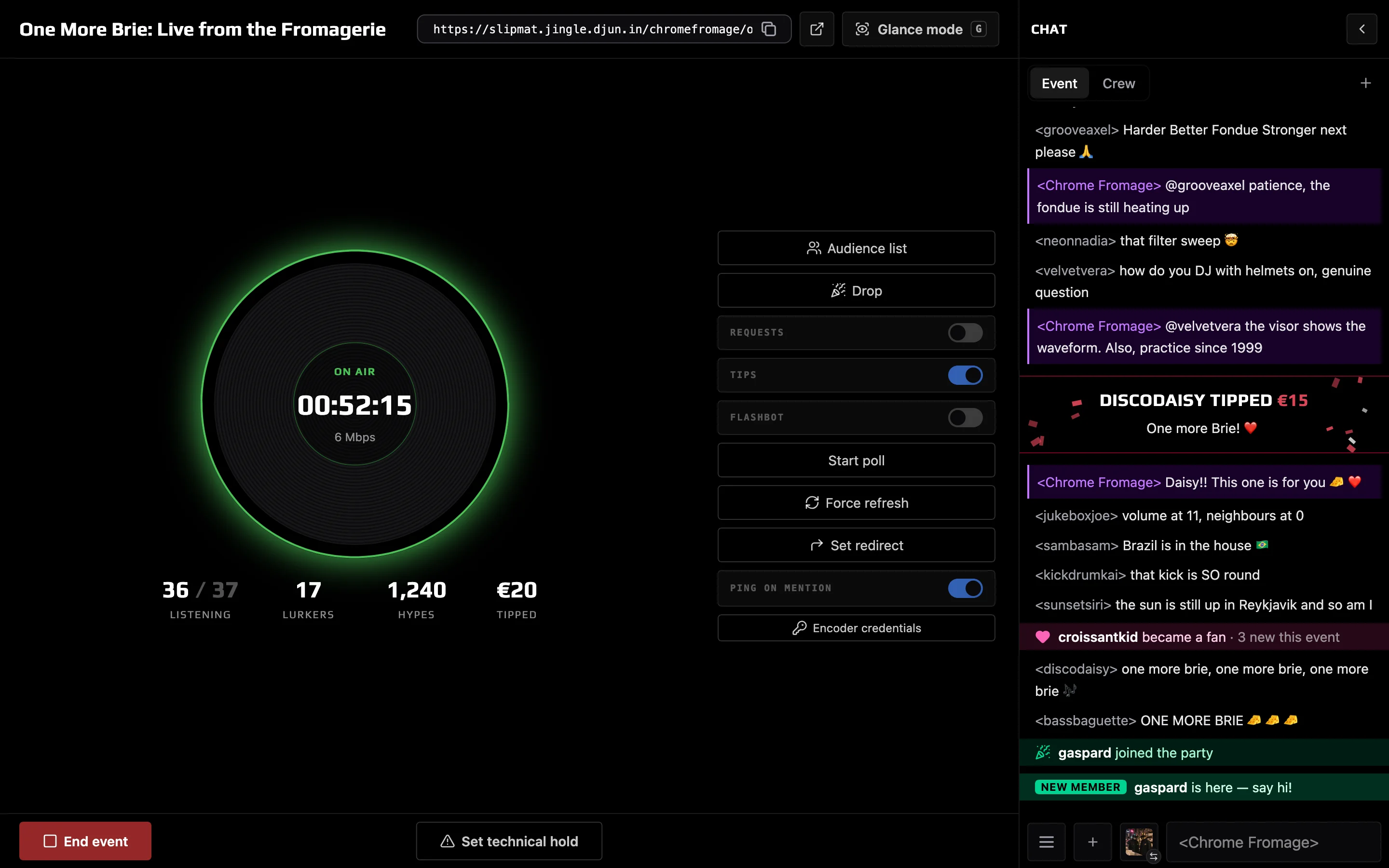
The Stream Dashboard is the screen you run a live event from. When an event of yours is in warmup or live, the Stream Dashboard shows in your artist menu, and your artist Dashboard shows the event at the top with a button to it. Everything you do on the air is on this one screen.
Step by step
Section titled “Step by step”- 30 minutes before the start time, Slipmat opens the doors. The event moves to warmup and its chat opens. Listeners start to arrive.
- Connect your streaming software. The ring in the middle changes from No encoder to Stream clean. Your RTMP server and stream key are under Encoder credentials.
- Click Start event to send the music out. The ring changes to On air and starts to count.
- Click End event when you are done.
The ring
Section titled “The ring”The ring shows the state of your broadcast. Your video bitrate is under it.
- No encoder: the doors are open, but no stream arrives.
- Stream clean: connected and healthy. Slipmat waits for you to start.
- On air: live. The ring shows how long you have played.
- Stream warning or Critical stream issue: Slipmat found a problem. The problem is shown under the ring.
- No signal: the event is live, but your stream is gone.
- Technical hold: you put the event on technical hold.
- Event over: you ended the event. The ring counts down to the end of the cooldown, when Slipmat archives the event.
The numbers under the ring:
- Listening: the listeners who listen now, out of all signed-in listeners.
- Lurkers: listeners without an account.
- Requests: open requests out of all requests, when requests are on.
- Hypes: the reactions that your audience sent.
The top of the screen shows the event’s title and its public URL, with buttons to copy or open it. Share it to tell your audience where to go.
- Audience list: who is in the room, who listens, and who stepped away. Open a person’s profile from here.
- Requests: the switch opens and closes song requests. Manage opens the queue. See Song Requests & Shout-outs.
- Start poll: ask the room a question with up to ten answers. Listeners can choose one answer or several. The poll shows on the video and the results update as votes come in. While the poll runs, the button shows the vote count. You can hide the poll, close the voting, or start a new poll.
- Force refresh: reloads the page for everyone who watches. Use it when listeners say that something is stuck.
- Set redirect: another Slipmat event to send your audience to when your event ends. After you save it, the button shows the target.
- Ping on mention: plays a sound when someone mentions you in any chat.
- Encoder credentials: your RTMP server URL and stream key.
The chat column on the right shows the event chat and your private crew channel next to each other. You can collapse it to make room.
Glance mode
Section titled “Glance mode”
When something goes wrong
Section titled “When something goes wrong”Set technical hold covers your video with a Technical hold notice and your message, for example “Back in a minute, fixing the stream”. Your listeners stay on the page and the chat continues. End technical hold removes the notice and refreshes the page for everyone. While the hold is on, Slipmat does not cancel or end the event. See what a technical hold does.
If your stream drops, the event stays live. Reconnect and the event continues. If the stream stays gone for 30 minutes, Slipmat ends the event.
If the event ended before you were done, you can resume it for 30 minutes: open the event’s page under Events and click Resume event. The event goes back to warmup, and you click Start event again. Song requests stay closed until you turn them on again.
Related
Section titled “Related”- Events: how to schedule an event
- Streaming Setup: how to connect your streaming software
- Soundcheck: how to test your stream before you go live
- Technical Hold: what your listeners see, and what Slipmat stops doing
- How Events Start And End: what Slipmat does automatically
- Frankie: encoder settings