Request Events
A request event brings Slipmat tools to a gig that you play somewhere else: a club, a wedding, a mobile DJ gig or a radio show. It doesn’t have a chat nor a live stream. It does have a public page in case you want to use the request system.
Create a request event
Section titled “Create a request event”- On the Schedule Event page, open Other Events and click Create request event.
- Choose the Date and the Start time. The Name is optional: without one, Slipmat names the event “Requests” and the date.
- Choose if and how how people can request, and click Create request event.
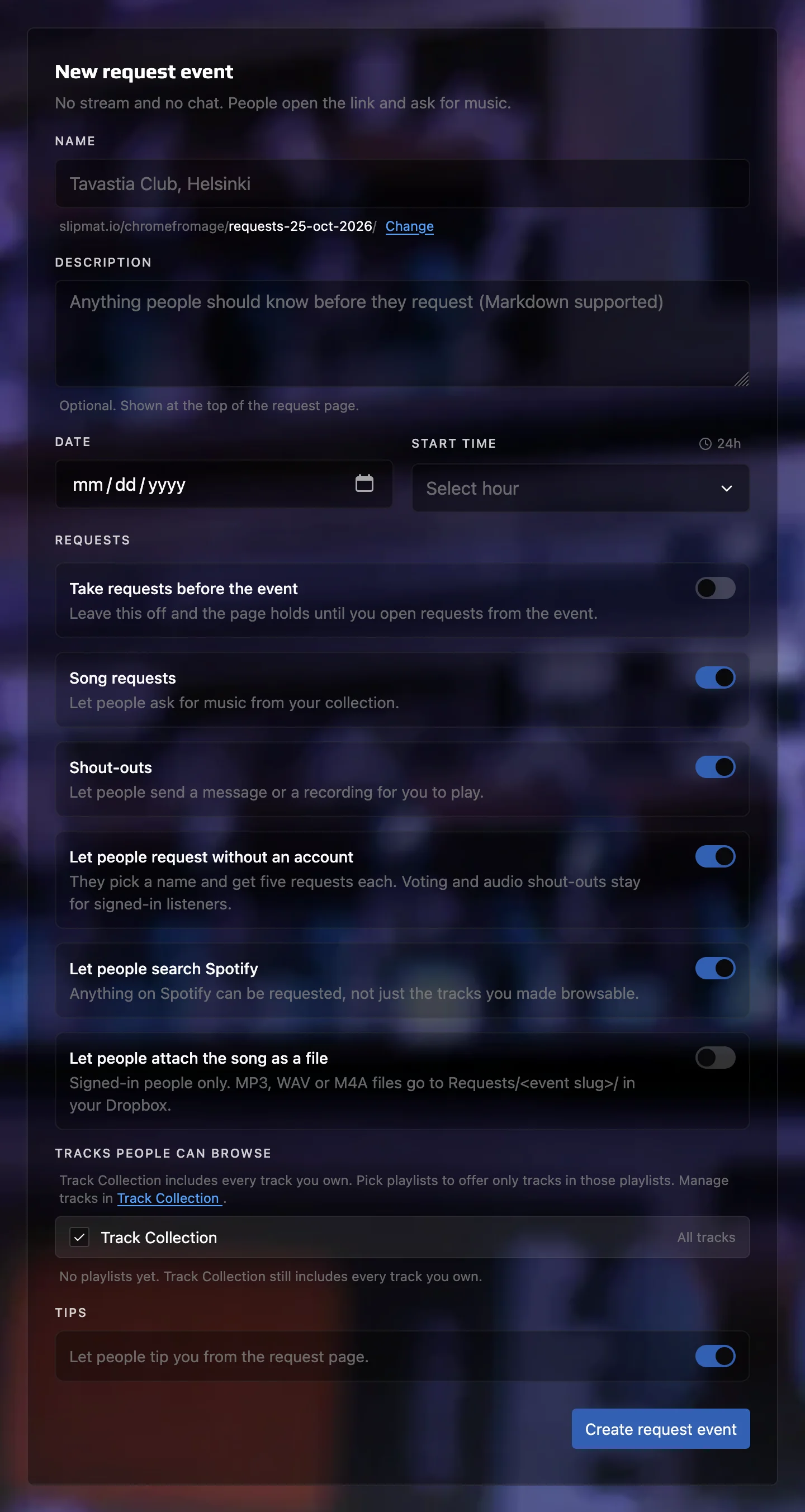
The request settings:
- Take requests before the event: off by default. Then the page waits until you open requests.
- Song requests and Shout-outs: what people can send you.
- Let people request without an account: on by default. Guests pick a name and get five requests each.
- Let people search Spotify: on by default. People can request anything on Spotify, not only your own music.
- Let people attach the song as a file: needs a connected Dropbox.
- Tips: let people tip you from the request page.
Share it with a QR code
Section titled “Share it with a QR code”Your artist has one permanent QR code, on the Artist QR Code page. The request event also has a QR code button. Print the code once, and it works for every gig after:
- While a request event runs, a scan opens its request page. When requests are open, the request app opens automatically.
- While a streamed event is live, a scan opens its live page.
- At other times, a scan opens your artist page.
You can also share the request page’s link. Slipmat never lists a request event anywhere so if you don’t share it anywhere it’s totally private.
Manage the gig
Section titled “Manage the gig”- The event starts automatically at its start time. To start earlier, click Start event on the event’s page.
- Turn Requests on and off from the event’s page. Manage requests opens your request queue.
- When the gig is over, click End event. Nothing ends a request event automatically.
Note: only one of your events can run at a time, and a request event counts.
Related
Section titled “Related”- Song Requests & Shout-outs: get your music into Slipmat, and answer requests
- Scheduled and ad hoc events: the events that you stream live