Events
An event is one performance on Slipmat. There are three kinds of events. This page covers the two that you stream live: scheduled and ad hoc events. If you want to use Slipmat tools for a mobile DJ gig, a radio show or any other non-streaming event, you can use (maybe poorly named) Request events.
Scheduled events
Section titled “Scheduled events”- A scheduled event starts on the hour. The doors open automatically 30 minutes before, so listeners can gather in the chat before the music starts.
- You start and end it in the Stream Dashboard.
- Only one event can be live at a time, and two of your events cannot start at the same time.
Schedule an event
Section titled “Schedule an event”Open the Schedule Event page. On the Live Streaming Event tab, choose Set date.
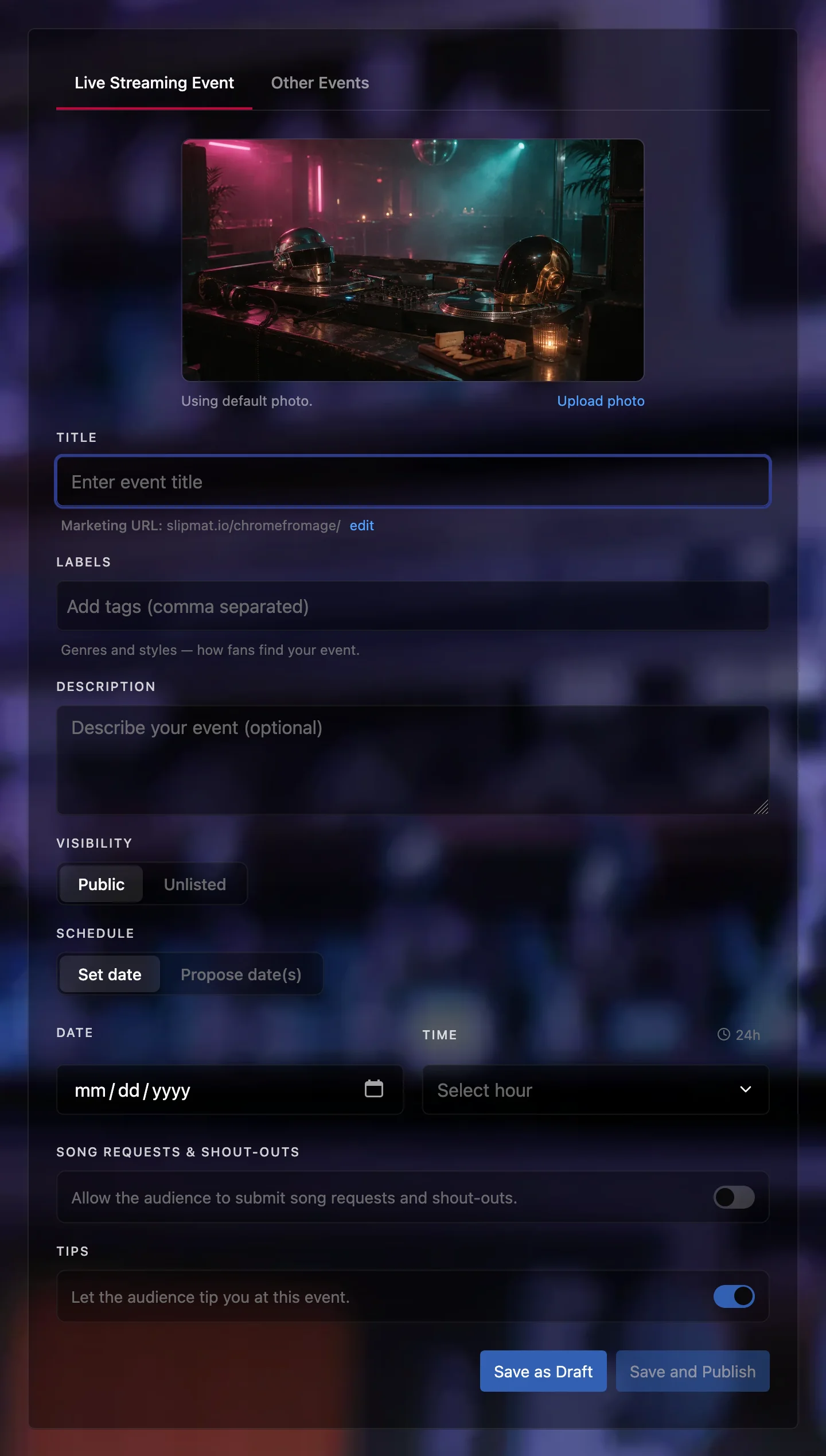
- Title: Slipmat makes the event’s slug from the title. To use a different slug, click edit. You cannot change the slug after you save.
- Labels: at least one genre or style, with no spaces. Fans can find your event by its labels.
- Visibility: Public events show in Slipmat’s listings. Unlisted events do not, but anyone with the link can open them.
- Date and Time: a date and an hour.
- Photo: if your artist has a default event photo, Slipmat uses it. Otherwise, choose a photo.
Save and Publish announces the event. Save as Draft keeps it private to your crew, with or without a date. To publish a draft later, edit it, set a date and a time, and click Save and Publish.
Let your listeners choose the date
Section titled “Let your listeners choose the date”If you want to gamify the event dates, you can choose Propose date(s) instead of Set date. Add one to four dates and the minimum number of “yes” votes, then click Ask my fans.
- Fans can vote on each date. When a date gets your minimum number of “yes” votes, the event is scheduled automatically on that date.
- Voting closes automatically at least 24 hours before the earliest date. If no date wins, the proposal expires automatically.
- You can confirm a date yourself at any time, also after the proposal expires. You can also cancel the proposal.
Recurring events
Section titled “Recurring events”Register a time slot for a recurring Show, and Slipmat schedules all its future events for you. When you have an active Show, the Show Episode tab on the Schedule Event page adds an episode to it.
Plan the event
Section titled “Plan the event”- Script Studio: script your set like a proper radio show as a timeline of tracks, jingles, talks and sections.
- Song Requests & Shout-outs: listeners can ask for songs from your own music and send you shout-outs. They are off by default; turn them on when you schedule the event.
- Checklists: your own list of things to do before, during and after the event. Pick one when you schedule the event, if checklists are on for your artist. A checklist never blocks anything.
Ad hoc events
Section titled “Ad hoc events”Start your streaming software, and the event starts automatically about a minute later.
- The event plays at your artist live URL,
slipmat.io/<your-artist>/live/. - It uses your permanent artist chat channel, and the messages stay there afterwards.
- It ends automatically about two minutes after you stop your stream. You can also end it yourself with End event in the Stream Dashboard.
- An ad hoc event does not start automatically when a scheduled event of yours starts in the next 60 minutes.
- You cannot resume an ad hoc event after it ends.
Your event’s page
Section titled “Your event’s page”Every event has a page under Events. From there you can:
- Edit a scheduled event. You can change its details until it ends, and its date and time while it is a draft or scheduled. You cannot change its slug.
- Add a Listener bulletin: information that listeners can see on the live page, under Bulletin.
- Set a Redirect after this event: when you end the event, your audience goes to the event that you set.
- Add a Recording embed from Mixcloud or Hearthis.
- Read the Chat log of a scheduled event after it is archived.
Cancel, hide or delete
Section titled “Cancel, hide or delete”- Cancel event: for a draft or a scheduled event. It stays listed as cancelled, and Slipmat tells everyone who RSVPed.
- Hide event: for an event that is over or cancelled. Its public page shows “not found”, and it is gone from all listings. Unhide event brings it back.
- Delete event: removes the event and everything in it, including its stats, RSVPs, setlist and song requests. You cannot undo this.
Related
Section titled “Related”- How Events Start And End: each stage of an event, and how to resume one